How to Connect Exness MT5 to a Trading Bot in 2026 (Full Walkthrough)
PineForge Team
Automated Trading Platform
You've built a strategy. You've backtested it. The numbers look real. Now you need to put it on a live broker — and Exness is the most likely candidate. It's one of the largest MT5 brokers in the world, ships tight spreads on XAUUSD and forex majors, and is available in most regions where retail trading is legal.
This guide walks you through how to connect Exness MT5 to a trading bot end to end — credentials you'll need, the security model, exactly what PineForge does behind the scenes, and how to verify your bot is live and trading. Five minutes of setup, lifetime of automation.
What You Need Before You Start
Three things — get them ready and the connection itself takes ninety seconds.
A Funded Exness MT5 Account
You need an actual MT5 account on Exness, not MT4. PineForge connects via the MT5 protocol exclusively. Go to your Exness Personal Area, open a new MT5 account if you don't already have one (Real or Demo both work), and note three values: MT5 login number (a 7-9 digit ID), password (the trading password, not your portal login), and server name (something like Exness-MT5Real6 or Exness-MT5Trial7).
If you've forgotten the trading password, reset it from Exness Personal Area → Settings → Trading password. Don't reuse your portal login password — they're different credentials.
A Bot Strategy You Trust
Don't connect Exness so you can hunt for a strategy. Connect Exness because you already have one. Run your Pine Script through PineForge's backtest engine on at least 12 months of XAUUSD or your chosen symbol. Verify the metrics: profit factor above 1.5, max drawdown you can stomach, enough trades to be statistically meaningful. Live execution magnifies a strategy's true edge — or its true flaws.
A Clear Risk Plan
Decide your lot size and your hard daily loss limit *before* you wire up the account. Live emotion overrides logic, and the moment your bot is connected to real capital, every "I'll figure it out later" decision becomes a real money decision. Cap your daily loss at 2-3% of account equity. Set a maximum lot size your script can never exceed.
The Step-by-Step Connection Flow
Once your prerequisites are ready, here's the exact sequence inside PineForge.
Step 1 — Open the Accounts Page and Click "Add Broker"
Inside your PineForge dashboard, navigate to Trading Accounts. Click the green "Add Broker Account" button. A connection dialog opens with a single dropdown for broker selection.
Step 2 — Choose Exness From the Broker List
Pick Exness from the dropdown. PineForge has pre-configured server profiles for major MT5 brokers including Exness, IC Markets, FTMO, and others, so the next field will surface only the Exness servers MetaAPI supports. This eliminates one of the most common setup errors — manually typing a server name and getting it wrong.
Step 3 — Enter Your MT5 Credentials
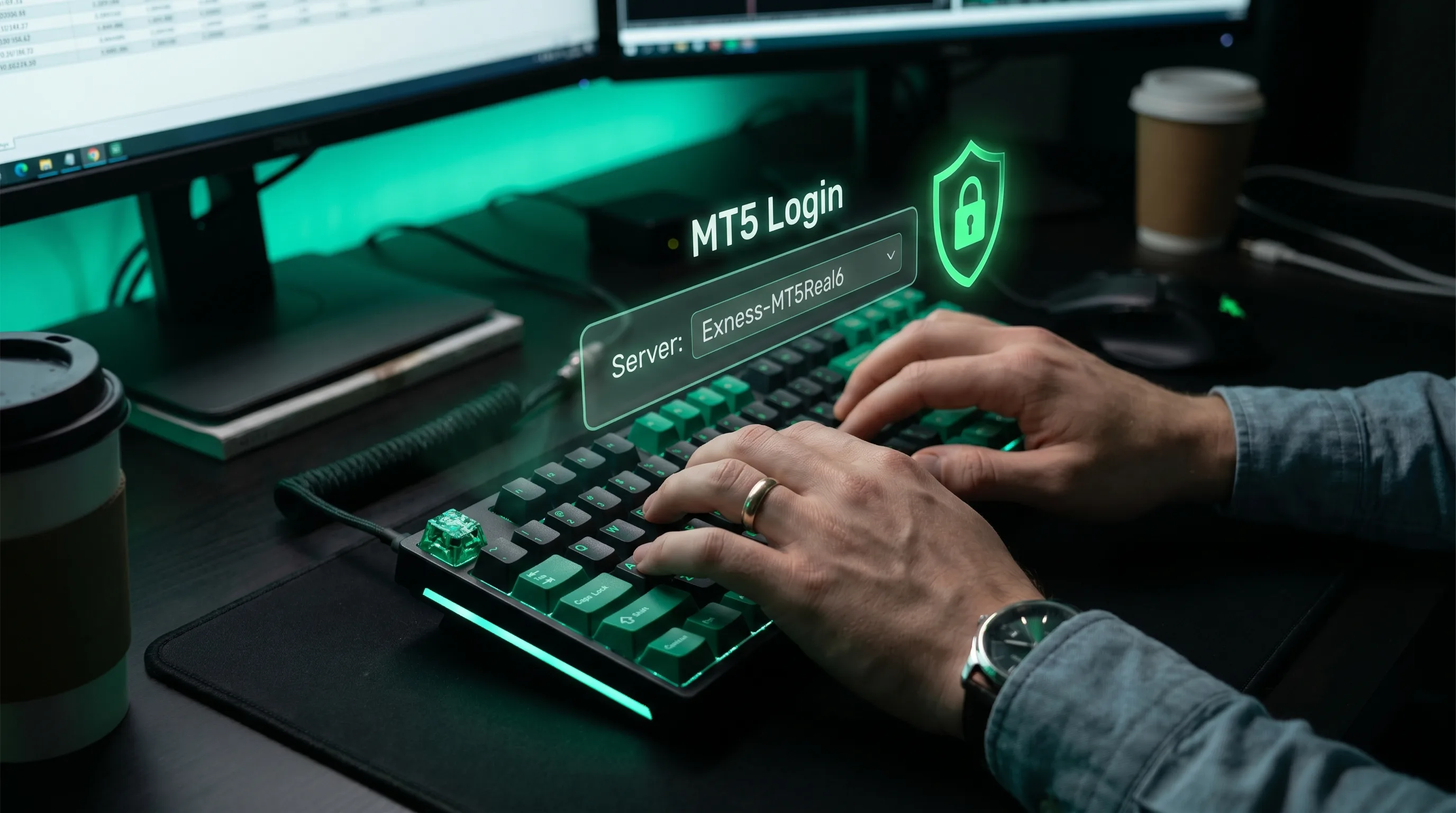
Three fields:
PineForge encrypts credentials in transit and at rest. Your password is never stored as plain text — it lives in an encrypted vault that only the connection layer can decrypt at runtime to authenticate with MetaAPI.
Step 4 — Submit and Watch the Deploy
Click Connect. PineForge does several things in parallel:
If credentials are correct, the account flips to "Deployed" within 30-60 seconds. If something fails — wrong password, wrong server, account not yet activated — you'll see an explicit error message. No silent failures.
Step 5 — Verify the Connection
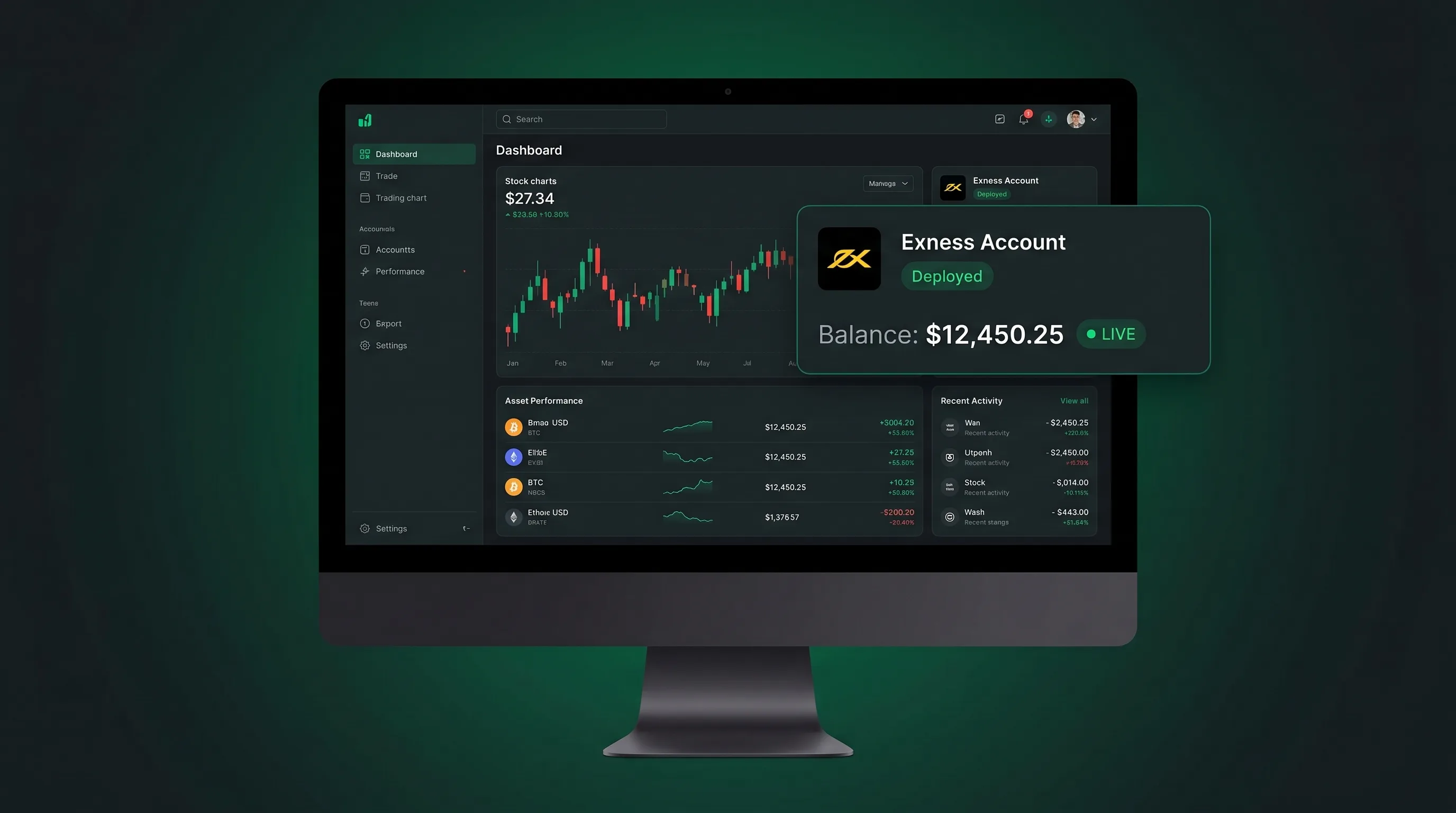
Once green, the account card shows your live balance, equity, and margin. Pull up MT5 Desktop on your phone or computer — the values should match exactly. If they do, the connection is working and ready to host a bot. If they don't, the credentials connected to the wrong account (the most common cause is using the demo password on a real account or vice versa).
How Does PineForge Actually Connect to Exness MT5?
Under the hood, PineForge uses MetaAPI, a cloud-based MT5 protocol gateway that acts as the bridge between your bot's logic and Exness's MT5 servers. Your bot doesn't run on a Windows VPS, doesn't need a downloaded MT5 terminal, and never touches Exness's servers directly.
This matters for three reasons:
Is It Safe to Give My MT5 Credentials to PineForge?
Yes, with the standard caveats that apply to any third-party connection. Three practical points:
Credentials are encrypted, not stored as plain text. PineForge stores your MT5 password in an encrypted vault. The decryption only happens at runtime, in memory, when the bot needs to authenticate to MetaAPI.
Use a separate MT5 account from your manual trading account. Even if you trust the platform, isolation is good security hygiene. Create a dedicated MT5 account on Exness for your bot. If anything ever goes wrong, the blast radius is contained.
MT5 trading password ≠ Exness portal password. PineForge only needs the trading password — the credential MT5 itself uses to send orders. Your Exness portal login (which controls fund withdrawals and KYC) is never required and never shared.
Why Doesn't My Bot Trade After I Connect Exness?
A connected account is necessary but not sufficient. After Exness is connected, you still need to:
Once started, the bot will trade on your Exness account using its strategy logic. If the strategy says "no entry signal yet," the bot will sit idle — that's correct behaviour. Watch the logs, not the trade count.
Can I Connect Multiple Exness Accounts to One PineForge User?
Yes. Each Exness MT5 account becomes a separate Trading Account record in PineForge, with its own credentials, its own bot, and its own isolated execution. PineForge enforces one bot per broker account — magic-number collisions are impossible because each bot owns its account.
If you want to run a Gold strategy on one Exness account and an EURUSD strategy on another, just connect both. The dashboard aggregates the PnL across all of them.
What Happens If My Exness Password Changes?
The connection breaks. PineForge will show an authentication error in the bot's logs and the account card will flip to a red status. Update the password from Trading Accounts → click the account → "Update credentials." The bot resumes once the new password is verified.
This is also why you should never reuse a trading password you also use elsewhere — rotation cascades into bot downtime.
Conclusion
Connecting Exness MT5 to a trading bot is no longer a Windows VPS project. With PineForge, it's a five-step form. The hard part isn't the connection — it's the strategy, the risk plan, and the discipline to let the bot do its job once it's live.
Three takeaways. First, get your MT5 trading password (not your portal password) and the right server name before you start. Second, isolate your bot's MT5 account from your manual trading account. Third, verify the connection by cross-referencing balance against MT5 Desktop before you click Start.
Connect your Exness MT5 account on PineForge — usage-based pricing, no monthly fees, your strategy on autopilot.
Start Trading Smarter
Build, backtest, and deploy your strategies with PineForge. No coding experience required.